KJV Audio Bible Help
How to Use the KJV Audio Bible
Read or listen to any verse, chapter, book, or reading plan directly in your browser. No app installation is required, and the main Bible and audio features are available without an account.
Quick start: Open a Bible book, select Play Chapter or the speaker beside any verse, and use the sticky player at the bottom of the page to control playback.
Read or listen to a Bible book
Every Bible book page contains the complete text, chapter navigation, verse-level audio, and continuous playback. You can begin with the whole chapter or select any individual verse.
- 1Play Chapter begins at the first verse of the displayed chapter.
- 2Book Summary opens an overview, outline, key themes, and book facts.
- 3Signed-in users see their Bible Journey, repeat book-run progress, and total completions.
- 4Use the numbered chapter buttons to jump anywhere in the book.
- 5Select the speaker beside a verse to begin listening from that verse.
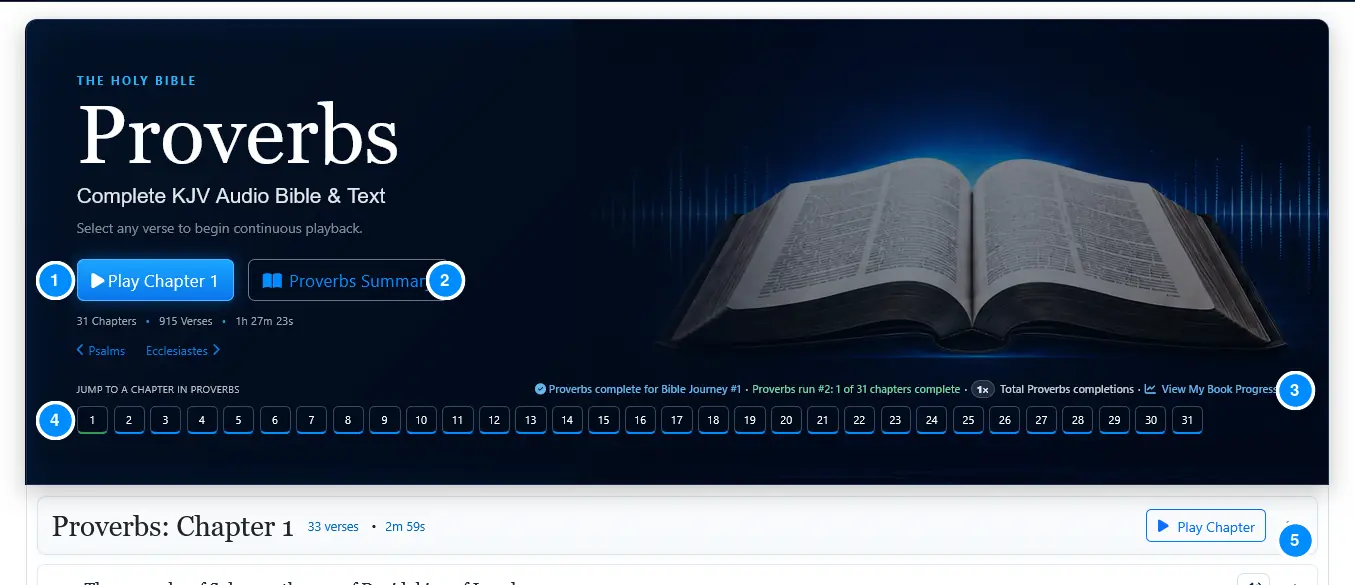 The complete book page keeps the text, chapter navigation, listening controls, and signed-in progress together.
Control playback with the sticky player
The player remains available at the bottom of the page while you read and scroll. Its current title and message tell you what will play next.
- 1Hide or show the player and use the large Play/Pause control.
- 2Change narration speed and volume.
- 3Decrease or increase the Bible text size.
- 4Choose Follow Verse, chapter-title narration, continuous playback, music, and Read Mode.
- 5Open additional player options or sign in to track progress.
- 6Enter Fullscreen or return to the top of the page.
 The responsive player rearranges these same controls for phones and tablets.
Follow the active verse and use verse tools
During playback, the active verse is highlighted so it is easy to follow the narration. The menu beside each verse provides tools for saving, sharing, printing, and creating graphics.
- 1The blue background and left border identify the verse currently playing.
- 2The active verse control changes state while that verse is playing.
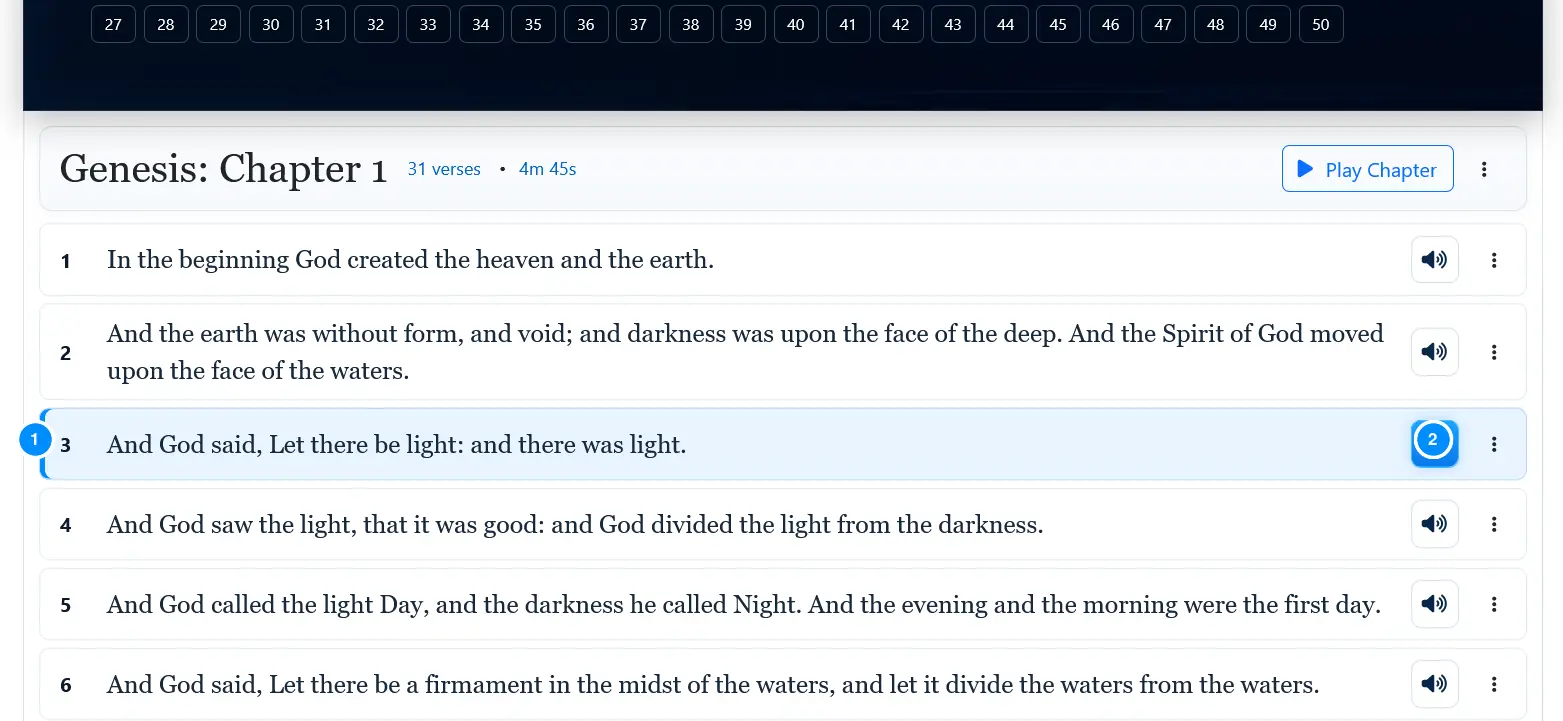 Follow Verse can keep the active passage in view automatically.
- 1Select the three-dot button beside a verse.
- 2Copy the verse text or link, print the verse, or generate a shareable verse image.
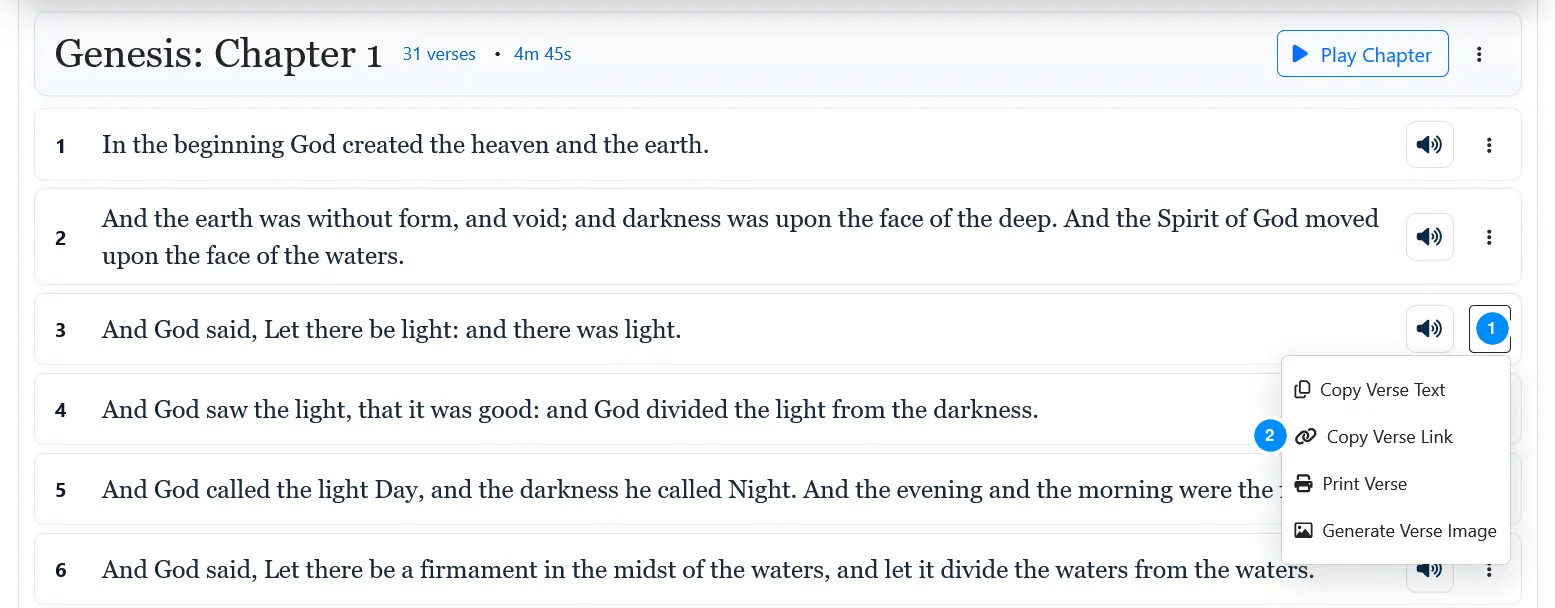 Verse links preserve the exact book, chapter, and verse location.
Use Fullscreen for focused listening
Fullscreen presents one verse at a time over a book-themed background, making it useful for focused listening, large displays, and presentations.
- 1The site identity remains visible in the upper-left corner.
- 2Exit Fullscreen from the upper-right control.
- 3The current Bible reference appears above the verse.
- 4Play or pause without leaving Fullscreen.
- 5Show the Fullscreen player for additional controls.

Choose and follow a reading plan
Reading plans organize Scripture into daily, weekly, or timed sequences. You can browse without signing in; a registered account adds enrollment, completion history, and cross-device progress.
- 1Badges identify the schedule, estimated daily time, and audio-optimized plans.
- 2Each plan explains its scope, sequence count, duration, and pacing.
- 3Sample sequences show how readings are grouped.
- 4Select View Reading Plan to see every sequence.
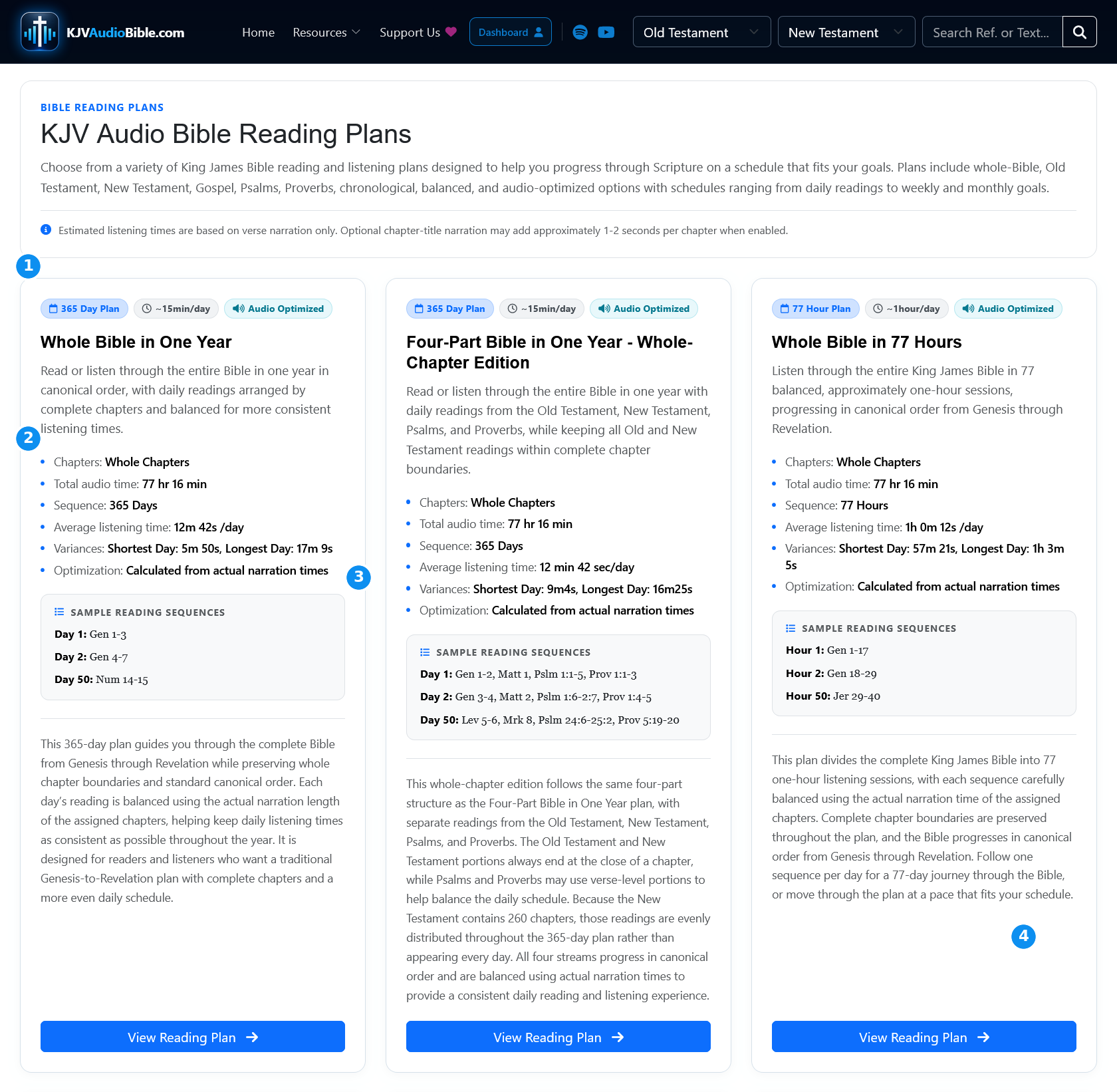
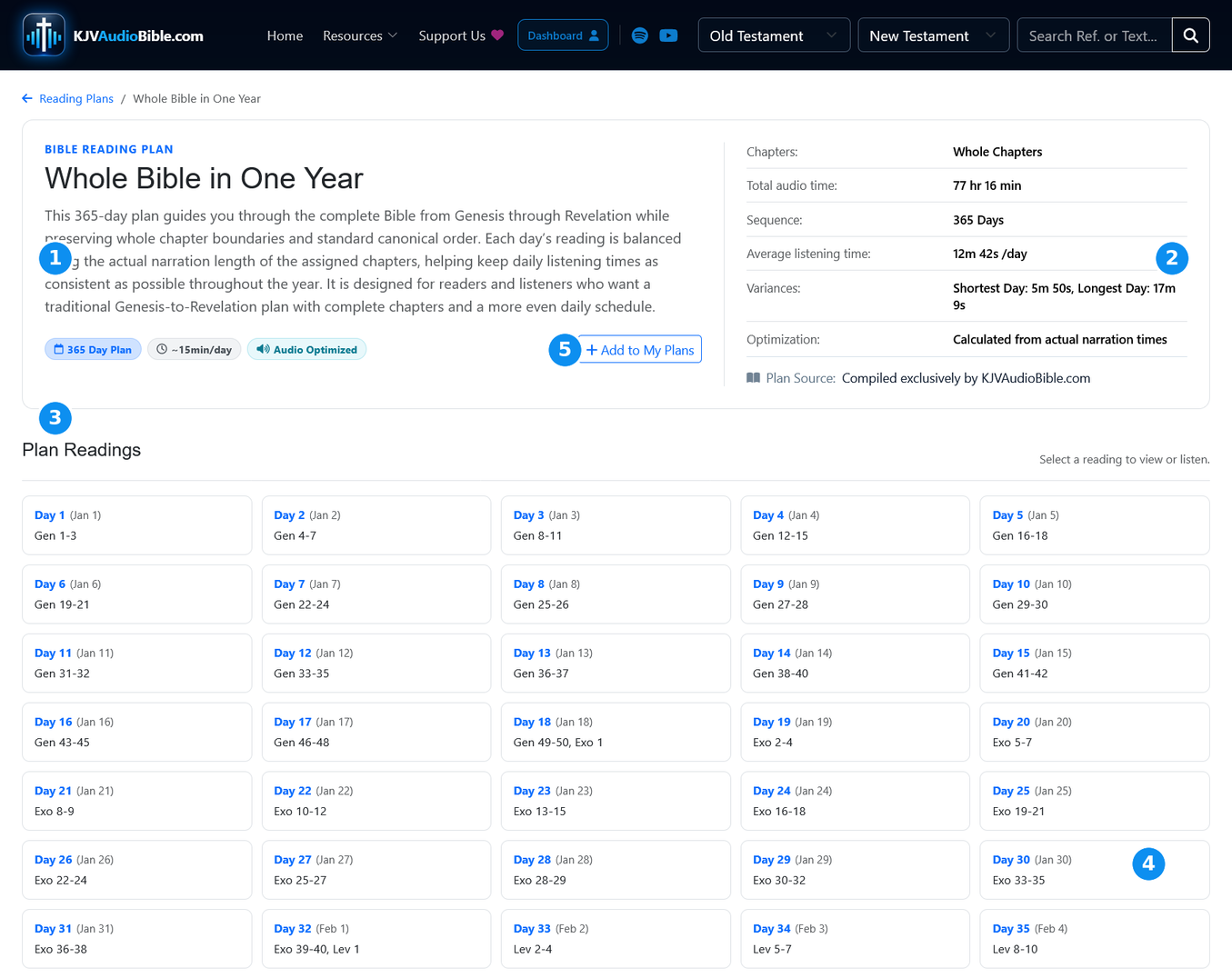
Open a plan and select a sequence
- 1Review the plan description.
- 2See plan-wide statistics and estimated time.
- 3Each sequence lists its assigned Bible references.
- 4Select any day, week, or hour to open that reading.
- 5Signed-in users can select Add to My Plans to add the plan to their dashboard and track their progress.
Read or play one sequence
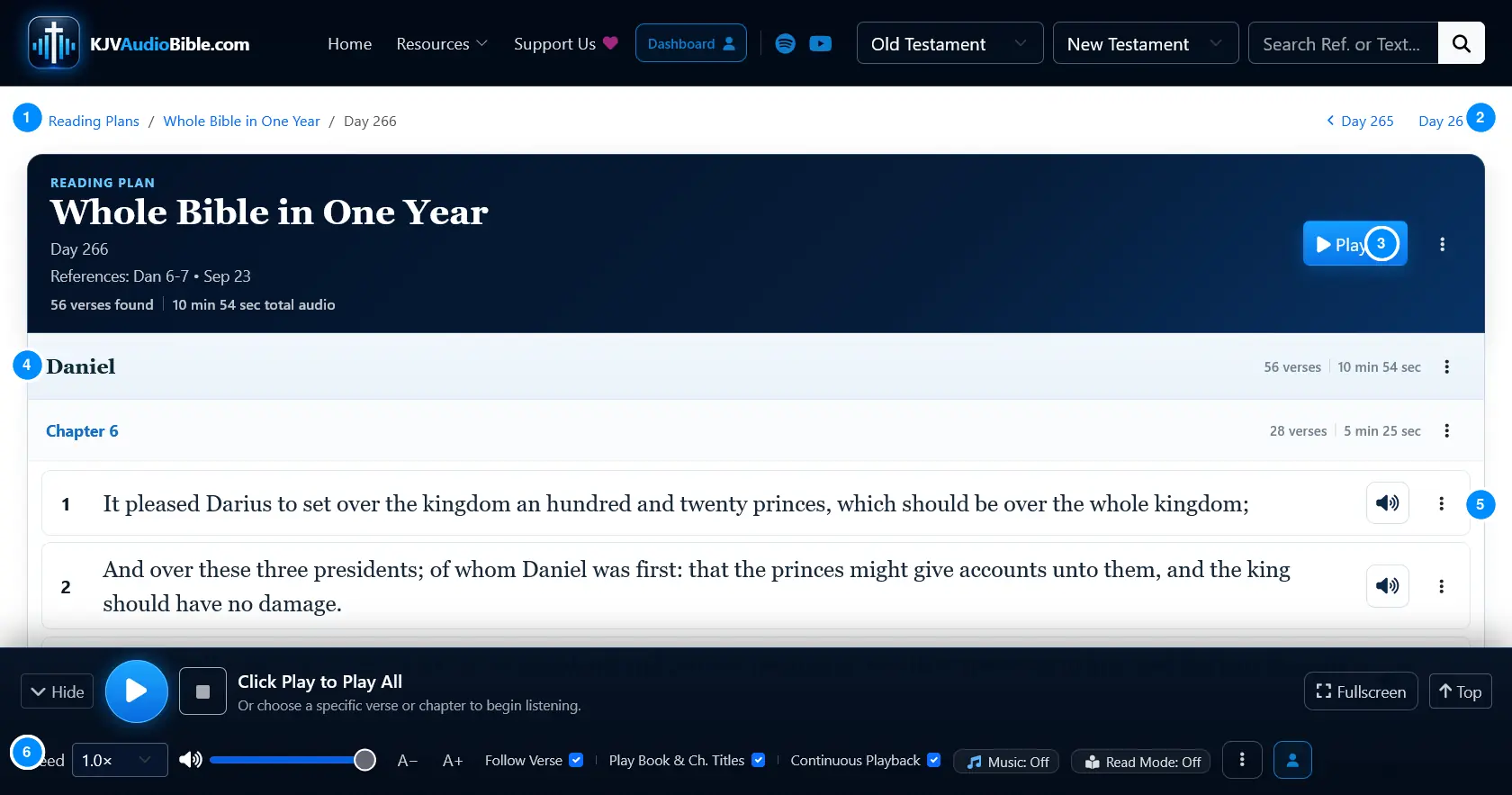
- 1Breadcrumbs return to the plan or full plan directory.
- 2Move directly to the previous or next sequence.
- 3Play All begins the complete assigned reading.
- 4Book and chapter headings organize the passage.
- 5Individual verse audio and verse menus remain available.
- 6The same sticky player controls the entire sequence.
Want your progress saved? Sign in before listening or reading. Registered users receive Bible Journey, book-run, and reading-plan tracking on the Dashboard.